How to set up a guest Wi‑Fi network in 5 minutes: step‑by‑step instructions
to read 6 min
You are hosting guests, of course, they ask for the Wi-Fi password. But, as you probably already know, sharing the password from the main network is quite dangerous, because all your personal devices are connected there.
A guest Wi-Fi network – this is a separate connection that allows visitors to use high-speed internet without having access to your files and devices. Setting it up is easier than even brewing coffee – the entire process takes only a couple of minutes!
Why is a guest Wi-Fi network needed?
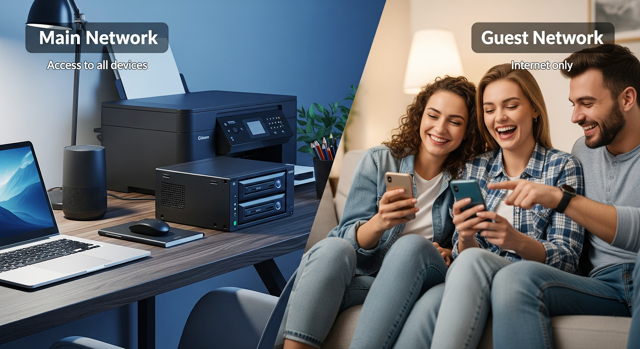
Let’s break down why a Wi-Fi network for guests is actually necessary.
Security of your home network
A guest network creates isolated access to the internet. Visitors won’t be able to see your files, printer, smart devices, or other connected gadgets. It’s like a separate room for guests – comfortable for them, safe for you.
Full control of access and internet speed for guests
You can limit the speed for the guest network, set time frames for operation, or even block access to certain sites. Your kids are playing online, and the neighbor is downloading movies? No problem – everyone gets their own bandwidth lane.
Convenience without compromises
No need to share the password from the main network or reconnect guests every time. A QR code on the refrigerator – and the problem is solved forever.
Step-by-step setup of a guest network
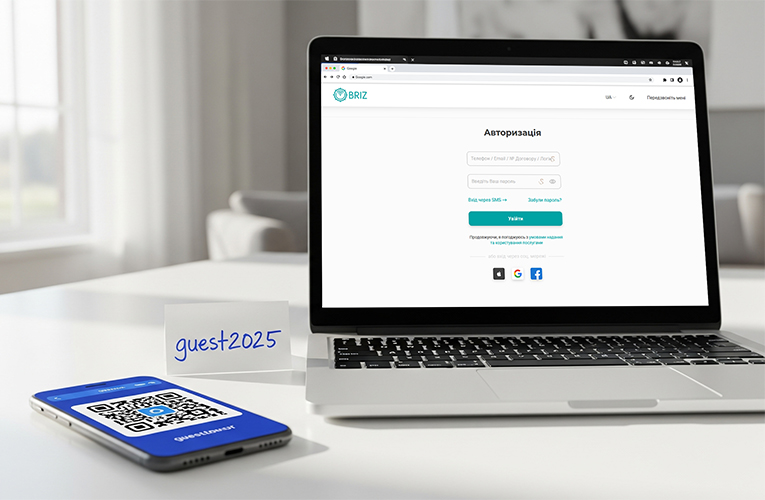
How to easily and quickly set up a guest Wi-Fi network?
Step 1: Accessing the router’s web interface
For Windows users:
Find the IP address of your router:
- open the command prompt (Windows: Win+R → type cmd);
- enter the command: ipconfig;
- find “Default Gateway” – this is the address of your router (usually 192.168.1.1 or 192.168.0.1).
Log into the settings:
- open a browser and enter the router’s IP address;
- enter the login and password (default: admin/admin or check the sticker on the router).
For Mac users:
Find the IP address of your router:
- open Terminal (via Spotlight: Cmd + Space → type Terminal);
- enter the command: netstat -nr | grep default;
- find the address after the word default – this is the IP address of your router (usually 192.168.1.1 or 192.168.0.1).
Log into the settings:
- open a browser and enter the found IP address;
- enter the login and password (default: admin/admin or check the sticker on the router).
Step 2: Finding the guest network section
In different routers, this section may be called differently:
- Guest Network (the most common name).
- Guest network (Ukrainian localization)
- Guest Access or Guest Zone.
- Wireless → Guest Network (in the Wi-Fi settings section).
Usually, this section is located in the main menu or in the Wi-Fi settings subsection.
Step 3: Activation and basic setup
Enable the guest network:
- check the box “Enable guest network” or “Enable Guest Network”;
- the status should change to “Active”.
Set the network name (SSID):
- enter a clear name, for example: “BRIZ_Guest” or “WiFi_for_guests”;
- avoid personal information in the name.
Set a password:
- choose the protection type: WPA2-PSK or WPA3-PSK (the most secure);
- create a simple but reliable password with a length of 8-12 characters.
Step 4: Additional settings (recommended)
Bandwidth limitation: set a speed limit – 50% of the total internet speed. This ensures stable operation of your main network.
Time restrictions: configure a schedule (e.g., from 8:00 to 22:00) or leave “24/7” for constant access.
Client isolation: enable the “Client Isolation” or “Guest Isolation” option for the security of your fiber optic network. Guests won’t be able to see each other’s devices.
Step 5: Saving and checking
Click “Save” or “Apply Settings”, the router will reboot (1-2 minutes). Check the network’s operation – connect from any device.
Useful tips for convenient use
Here are some lifehacks that will make your life easier.
Creating a QR code for quick connection
Use an online Wi-Fi QR code generator:
- enter the network name and password;
- print the code and attach it in a convenient place;
- guests simply scan with their smartphone – connection in 3 seconds!
Quick network management
Most modern routers have mobile apps that allow:
- enable/disable the guest Wi-Fi network BRIZ with one tap;
- change the password without accessing the web interface;
- view connected devices.
Main vs guest network: key differences
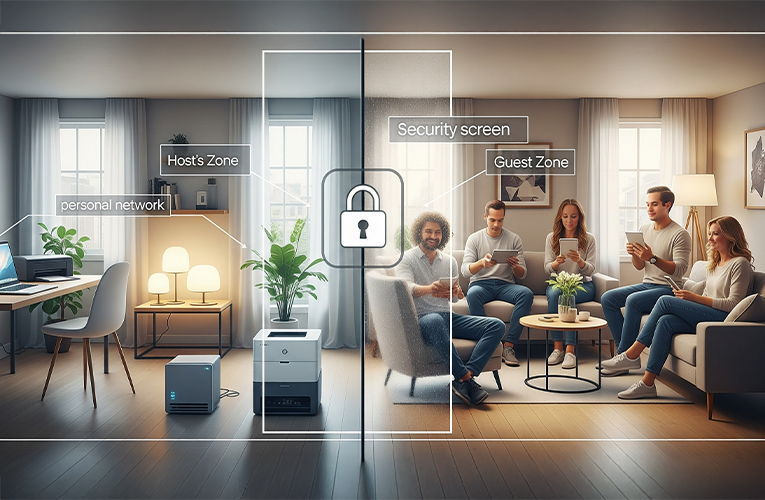
- Main network: access to devices, TVs with internet television, online cinema services, printers, NAS servers (special devices for data storage that connect to your home network and work as your own “cloud” right at home).
- Guest network: only internet, complete isolation from home devices.
- Speed: can be limited for the guest network.
- Control: flexible access and operation time settings.
Solving common problems
The network doesn’t appear in the list of available:
- check if “SSID Broadcast” is enabled;
- unplug the router, wait 2-3 minutes, and plug it back in.
Slow speed in the guest network:
- increase the bandwidth limit in the settings;
- check how many devices are using the network simultaneously.
Guests can’t connect:
- check the correctness of the password;
- ensure the connection limit hasn’t been reached (usually 10-32 devices).
Security of the guest network: additional recommendations
Here are some more important tips for working with the Wi-Fi network for guests.
Regular password changes
Change the guest network password monthly or after large gatherings. This is a simple way to control who has access.
Monitoring connected devices
Periodically check the list of devices connected to the guest network. Unfamiliar devices? Change the password immediately.
Content filtering settings
Many routers allow blocking access to certain site categories for the guest network. This is especially useful if you often have guests with children.
Optimizing work with the BRIZ network
High-speed fiber optic connection from BRIZ unlocks all the possibilities of the guest network and GPON technology, which ensures stable operation of both the main and guest networks even with simultaneous use by dozens of devices.
Recommendations for BRIZ subscribers:
- Set the guest network limit at 30-50% of the tariff plan.
- Use the 5 GHz frequency for the main network, 2.4 GHz – for the guest network.
- With speeds above 100 Mbps, you can avoid limiting the guest network.
Now your home network is securely protected, and guests can conveniently connect to the internet! A guest Wi-Fi network is a simple way to combine security with hospitality.
Receive information about promotions and news from BRIZ to your email address

Be the first to comment